HEIC Format Guide: Apple High-Efficiency Photos & HEVC Compression
A practical reference for HEIC: how Apple uses HEVC intra-frame compression to halve iPhone photo storage, when HEIC beats JPEG, how to convert HEIC for Windows/Android compatibility, and how to convert HEIC without uploading personal photos to a server.
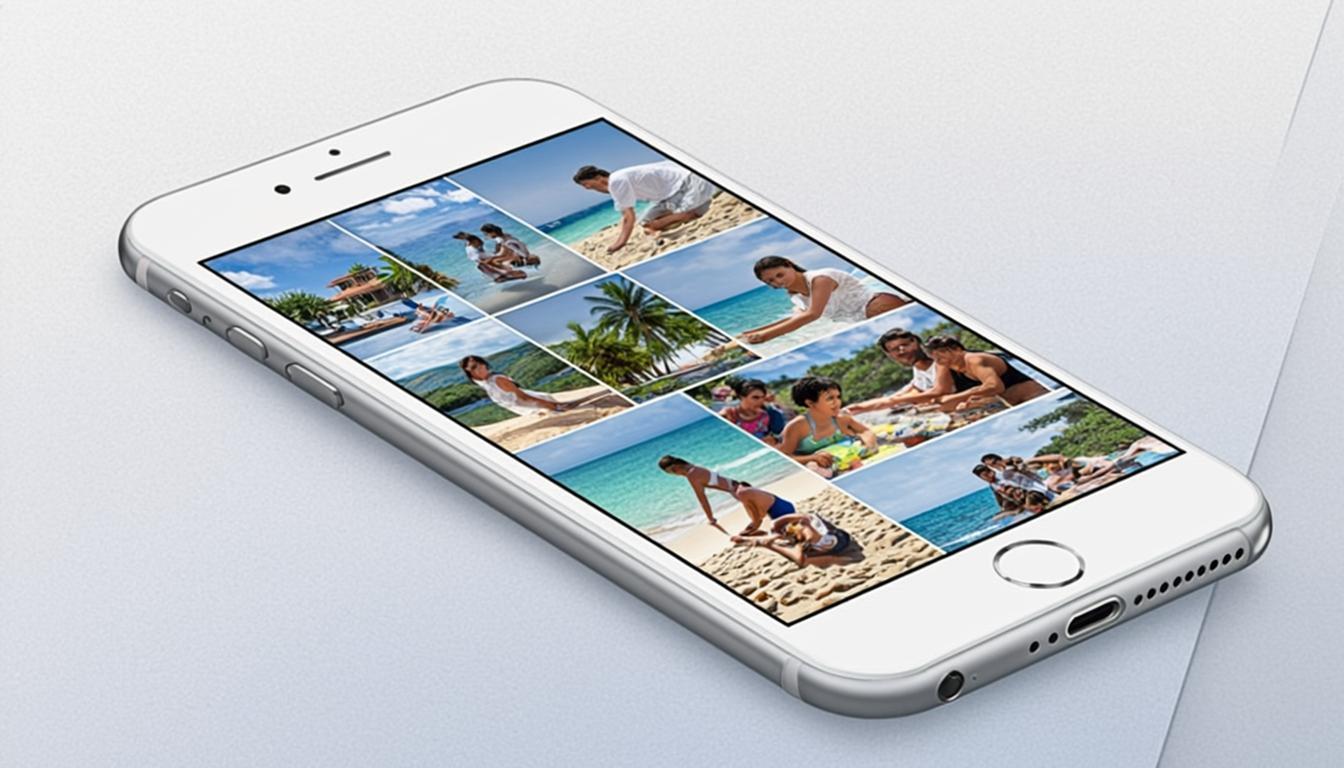
Quick Answer: HEIC in Plain English
HEIC saves iPhone storage — photos take up half the space of JPG at the same quality. Every iPhone since 2017 uses HEIC by default.
✓ Best For
- Saving storage on iPhone and iPad
- Apple ecosystem workflows (AirDrop, iCloud, Photos app)
- HDR photography on iPhone 12 and later
- Archiving Apple device photos
✗ Not Great For
- Sharing with Windows or Android users (they may not be able to open it)
- Web delivery (browser support is limited)
- Older software that doesn't support HEIC
💻 Works On
iPhone 7+, iPad 7th gen+, macOS High Sierra+. On Windows, needs HEVC codec. On Android, varies by manufacturer.
What is HEIC? Apple's High-Efficiency Image Container
HEIC (High-Efficiency Image Container) is Apple's photo format introduced with iOS 11 in 2017. HEIC is a container based on the HEIF standard (ISO/IEC 23008-12); inside the container, each image is encoded with HEVC (H.265) intra-frame compression. The result: HEIC files are roughly half the byte size of equivalent-quality JPEG files.
Every iPhone and iPad sold since 2017 defaults to HEIC for camera capture. macOS High Sierra and later read HEIC natively. The format supports 8-bit and 10-bit color depth, HDR (via PQ or HLG transfer functions), alpha transparency, burst collections, and image sequences (live photos) in a single file container.
HEVC Lossy Compression: How HEIC Halves iPhone Photo Storage
HEVC (High-Efficiency Video Coding, the H.265 video codec) compresses still images with a more advanced pipeline than JPEG's DCT: 4×4 to 64×64 block partitioning, 35 intra prediction modes (versus JPEG's static DCT), integer DCT with no rounding drift, and Context-Adaptive Binary Arithmetic Coding (CABAC) instead of Huffman. The combined pipeline yields roughly 2× compression efficiency versus JPEG at equivalent visual quality.
For an iPhone user, that means a 4 MB JPEG-quality photo fits in a 2 MB HEIC file at the same visual fidelity. Across a camera roll of 5,000 photos, HEIC saves 10 GB of storage compared to JPEG. Apple uses this savings to push higher-resolution sensors and HDR capture modes without blowing up device storage budgets.
10-Bit Color, HDR & Apple ProRAW
HEIC supports 8-bit and 10-bit color depth natively, plus HDR metadata (PQ and HLG transfer functions). On iPhone 12 and later with ProMotion or ProDisplay XDR screens, HEIC photos render with true HDR — extended highlights, deeper shadows, and wider color gamut (Display P3). The 10-bit pipeline also prevents banding in smooth gradients like skies and skin tones.
Apple ProRAW (on iPhone 12 Pro and later) wraps a 12-bit DNG raw file inside a HEIC container, combining raw editing headroom with HEIC storage efficiency. For professional photo workflows, ProRAW HEIC files preserve the entire sensor capture with the same compression benefit as standard HEIC photos.
HEIC vs JPEG vs AVIF: The High-Efficiency Format Family
HEIC and AVIF are sibling formats — both use HEIF containers, but HEIC encodes with HEVC (H.265) while AVIF encodes with AV1. AVIF delivers roughly 20–30% smaller files than HEIC at equivalent quality because AV1 is a newer, more efficient codec. HEIC is older, more widely supported on Apple devices, but slower to gain universal browser support.
JPEG is still the universal delivery format — every device, browser, and printer reads it. HEIC is the right choice for Apple device capture (saves storage on the iPhone), but for cross-device sharing, convert HEIC to JPEG or WebP before sending. The in-browser HEIC to JPG converter handles this in seconds without uploading personal photos to a server.
HEIC vs WebP vs AVIF: Modern Web Format Comparison
For modern web delivery, the format ranking by compression efficiency is: AVIF (smallest), HEIC (next), WebP (next), JPEG (largest). For browser support: JPEG (universal), WebP (97%+ global), AVIF (95%+ global), HEIC (limited — Chrome and Firefox have incomplete support; Safari supports HEIC since macOS High Sierra).
For images captured on iPhone: keep the HEIC source for Apple device viewing and editing, but convert to JPEG or WebP before web delivery. AVIF is also a valid delivery format if your target browsers all support it. Do not ship HEIC to a public web page — Safari supports it, but Chrome and Firefox render it inconsistently.
EXIF, Burst Collections & HEIC File-Size Bloat
HEIC files can carry multiple images in a single container: the main photo, a thumbnail, an HDR gain map, a depth map, and burst siblings. Apple uses this for Live Photos (a still image plus a short video clip in one file) and for HDR capture (multiple exposures in one file). These additional streams add bytes that ship with every photo.
For web delivery, strip everything except the main photo. The HEIC → JPG or HEIC → WebP conversion in the browser automatically drops burst siblings, depth maps, and HDR gain maps, keeping only the primary still image. EXIF (camera model, lens, GPS, timestamp) is stripped unless you explicitly preserve it.
HEIC & Core Web Vitals: Why You Should Convert Before Shipping
HEIC has limited browser support — Chrome and Firefox have incomplete HEIC decoding, and most non-Apple users cannot render HEIC at all. Shipping HEIC to a web page breaks the image for a large fraction of visitors. The practical fix: convert HEIC to JPG, WebP, or AVIF before uploading.
For Core Web Vitals, the converted WebP or AVIF delivers smaller byte size than the original HEIC, which improves LCP. JPEG is a safe fallback for legacy browsers. Use the <picture> element with multiple sources: AVIF first, WebP second, JPEG third. Do not list HEIC as a source — most browsers will skip it.
HEIC Conversion Strategies: Quality, Color Depth & HDR
When converting HEIC to JPEG, the 10-bit source is tone-mapped to 8-bit sRGB. The result is visually identical on most displays, but HDR highlights may compress slightly. For HDR-preserved output, convert HEIC to AVIF (10-bit) or WebP (10-bit on supported encoders) instead of JPEG (8-bit only).
Quality 80–85% is the universal sweet spot for HEIC → JPG conversion — files roughly half the size of the HEIC source at near-identical visual quality on a normal display. For HEIC → WebP, quality 80% matches the visual quality of the HEIC source at 25–35% smaller byte size than the JPG output. For HEIC → AVIF, quality 60% produces a file roughly 30–40% smaller than the WebP output with no visible quality drop on modern screens.
HEIC Privacy: Personal Photos & Cloud Conversion Risk
iPhone photos are personal. They contain GPS coordinates, dates, and often faces of family members. Uploading HEIC files to a cloud conversion service hands this metadata (and the image content) to a third party. The server may log the upload, store the file indefinitely, share it with advertising partners, or expose it through a security breach.
In-browser HEIC conversion eliminates this risk. The bytes never leave the device; the server only delivers the WASM decoder module. CloudImageConverter uses this architecture — no upload endpoints exist on the server. For photo collections containing children, family members, or sensitive locations, in-browser HEIC conversion is the only defensible workflow.
Browser-Based HEIC Decoding: libheif in WASM
HEIC decoding requires the HEVC codec, which is patent-encumbered. Browsers ship libheif + HEVC WASM modules that decode the format on the user's CPU. Decoding latency is 200–800 ms per image on modern hardware — fast enough for one-off conversions and acceptable for batch conversion when parallelized across a worker pool.
CloudImageConverter ships Squoosh-compatible libheif WASM modules. The browser does the decoding; the bytes never leave the device. For HEIC → JPG conversion of a 4 MB iPhone photo, expect 300–600 ms on a modern laptop. For batch conversion of 100 HEIC photos, the worker pool parallelizes across 2–4 cores, finishing the batch in 10–30 seconds with zero network round-trips for the image data.
Related HEIC Conversion Tools
Ready to Work with HEIC?
Jump straight to the tool you need — convert HEIC to another format, compress HEIC files for smaller sizes, or edit HEIC images (resize, crop, watermark, add text).
HEIC Task Guides
Learn how to convert, compress, and edit HEIC files with our dedicated task guides.
HEIC Frequently Asked Questions
Common questions about HEIC format — when to use it, how it works, and how to convert it.
HEICWhat is HEIC and why does my iPhone use it?+
HEIC (High-Efficiency Image Container) is Apple's photo format introduced with iOS 11 in 2017. Every iPhone and iPad sold since 2017 defaults to HEIC for camera capture because HEIC files are roughly half the byte size of equivalent-quality JPG files. So a 4 MB JPG-quality photo fits in a 2 MB HEIC file at the same visual fidelity. Across a camera roll of 5,000 photos, HEIC saves 10 GB of storage compared to JPG. HEIC also supports 10-bit HDR color (so HDR photos from iPhone 12+ retain extended dynamic range) and burst collections in a single file.
HEICCan I open HEIC files on Windows?+
Yes, but you may need to install a codec. Windows 10 and 11 can open HEIC files in the Photos app and File Explorer, but only if the HEVC Video Extensions codec is installed. Microsoft charges $0.99 for this codec in the Microsoft Store, though most new Windows PCs come with it pre-installed. Once installed, you can open HEIC files in the Photos app, File Explorer, and any application that uses the Windows imaging APIs. Alternatively, convert your HEIC files to JPG using the CloudImageConverter HEIC to JPG tool — the JPG files open natively on every Windows PC without any codec installation.
HEICCan I open HEIC files on Android?+
It depends on the manufacturer. Samsung Galaxy devices running Android 9+ support HEIC natively in the Gallery app and Google Photos. Other Android manufacturers (Google Pixel, OnePlus, Xiaomi) have varying levels of HEIC support — some support it natively, others require a third-party app. To ensure your HEIC photos open on every Android device, convert them to JPG using the CloudImageConverter HEIC to JPG tool. JPG is universally supported by 100% of Android devices, all image viewers, and all messaging apps. The conversion runs in your browser, so your personal photos (which may contain GPS coordinates and family member faces) never leave your device.
HEICHow do I convert HEIC to JPG?+
Use the CloudImageConverter HEIC to JPG tool — drop your HEIC files (one at a time or up to 100 in a batch), pick JPG as the output, set quality to 80–85% for the universal web/email sweet spot, and download the converted JPG files. The conversion runs entirely in your browser using the libheif WebAssembly codec, so your personal iPhone photos never leave your device — important because HEIC files contain GPS coordinates, dates, and camera serial numbers in their EXIF metadata. For batch conversion of 100 HEIC files, the worker pool finishes in 10–30 seconds, and you download all converted JPGs as a single ZIP archive.
HEICDoes HEIC really save iPhone storage?+
Yes. HEIC files are roughly half the size of equivalent-quality JPG files. So if your iPhone camera roll has 5,000 photos at an average of 4 MB each as JPG, that's 20 GB of storage. With HEIC, the same 5,000 photos take about 10 GB — saving 10 GB of storage. This is why Apple switched to HEIC as the default camera format in iOS 11 (2017). The savings come from HEVC (H.265) compression, which is roughly 2× more efficient than JPG's DCT compression. The visual quality is the same — most users cannot tell the difference between a HEIC photo and a JPG photo at the same quality setting on a normal display.
HEICIs HEIC better than JPG?+
For iPhone users, yes — HEIC saves 50% of storage with the same visual quality, supports 10-bit HDR color (which JPG does not), and works natively across all Apple devices (AirDrop, iCloud Photos, Photos app, Quick Look). For sharing with Windows or Android users, no — HEIC support on non-Apple devices is inconsistent and may require codec installation. The pragmatic approach: keep your iPhone camera roll as HEIC to save storage, and convert to JPG only when you need to share photos with non-Apple users or upload to platforms that don't support HEIC. Use the CloudImageConverter HEIC to JPG tool for the conversion — it runs in your browser, so your personal photos stay on your device.