Converting HEIC Images
Everything you need to know about converting HEIC files to other image formats — when to convert, which output format to choose, how to preserve quality, and how to batch-convert multiple files at once.
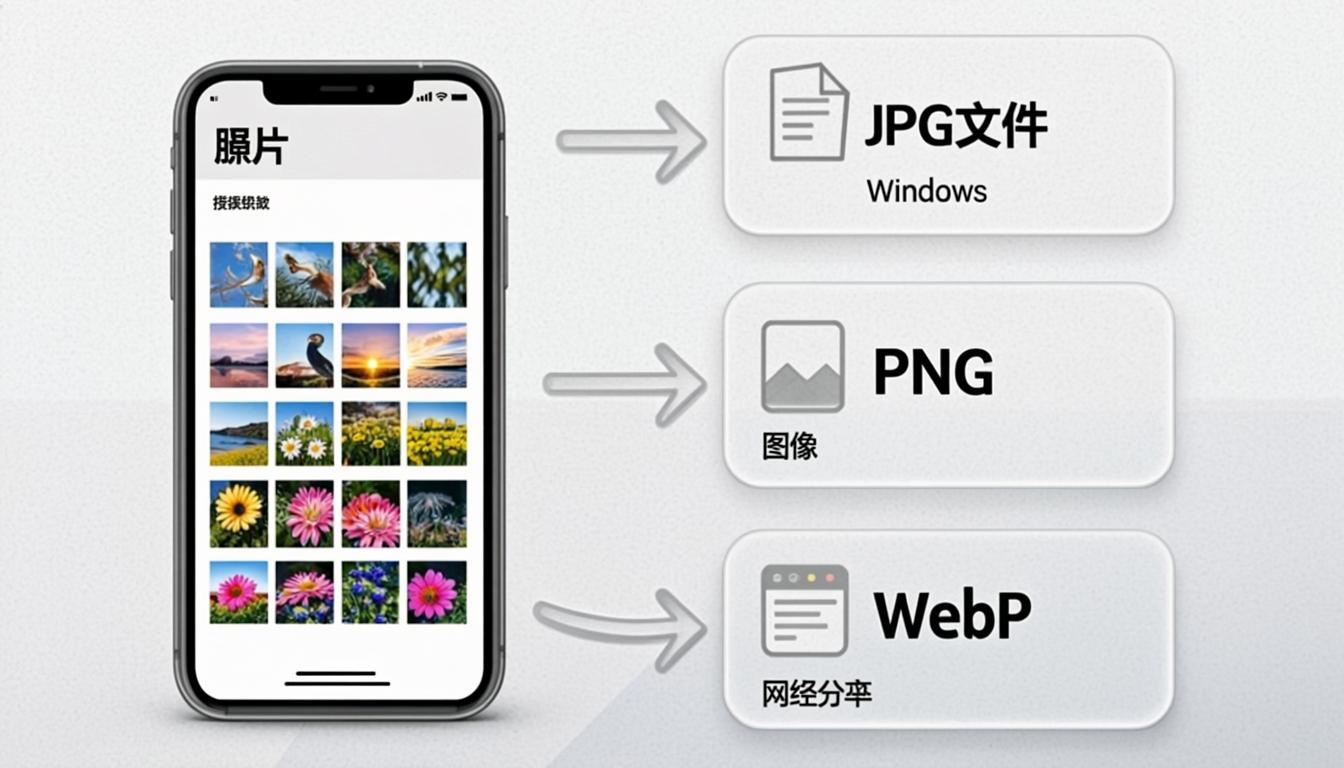
Converting HEIC: When, Why, and How
Converting HEIC to JPG makes your iPhone photos viewable on every device — Windows PCs, Android phones, smart TVs, and any software.
Best For
- Making HEIC files smaller for web delivery
- Making HEIC compatible with software that does not support it
- Batch-converting multiple HEIC files at once
- Converting HEIC to a format with different features
Not Great For
- Converting to the same format (no benefit)
- Converting to a lower quality format when you need pixel-perfect editing
- Converting lossy formats repeatedly (each conversion adds generation loss)
Works On
All conversion runs in your browser using WebAssembly codecs — works on Windows, Mac, iPhone, Android, and Chromebook. No uploads, no accounts, no watermarks.
When to Convert HEIC Files
Convert HEIC files when the current format does not meet your needs — the file is too large for web delivery, the format is not supported by your target application, or you need features that HEIC does not offer.
The most common reason to convert HEIC is to reduce file size for web delivery. Modern web formats like WebP and AVIF produce 25-50% smaller files than older formats, directly improving Google Core Web Vitals scores and page load times. If your website serves HEIC images, converting them to WebP or AVIF is the single most effective way to improve page speed.
Another common reason is compatibility. HEIC files may not open on all devices or in all software. Converting to JPG or PNG ensures universal compatibility — these formats are supported by 100% of devices, browsers, and image editors in existence.
Which Format to Convert HEIC To
For web delivery, convert HEIC to WebP or AVIF. WebP is supported by 97%+ of browsers and produces 25-35% smaller files than JPG. AVIF is supported by 95%+ of browsers and produces 40-50% smaller files than JPG. Ship both via the HTML picture element with JPG as a fallback.
For universal compatibility (email, legacy software, IoT devices), convert HEIC to JPG. JPG is supported by 100% of devices and image viewers in existence. Quality 80-85% produces no visible quality loss on most screens at roughly 25-40% of the original file size.
For lossless editing masters, convert HEIC to PNG. PNG preserves every pixel exactly and supports full 8-bit alpha transparency — ideal for logos, UI graphics, and any image that will be edited repeatedly. PNG files are larger than JPG but lossless.
For print workflows, convert HEIC to TIFF for commercial print shops or PDF for document archiving. Both preserve maximum color depth and are standard in publishing workflows.
Quality Settings When Converting HEIC
When converting HEIC to another lossy format, set quality to 80-85% for the universal sweet spot — visually identical to the source on most screens at a fraction of the byte size. For archival or print, use 95-100%. For thumbnails and messaging apps, use 70-75%.
When converting HEIC to a lossless format (PNG, TIFF, BMP), quality is preserved 100% — no compression artifacts, no generation loss. The output is a pixel-perfect copy of the decoded source. Use lossless output for archival masters and editing workflows.
For batch conversion of 100+ HEIC files, use the Auto quality setting — the converter tries multiple quality levels and picks the smallest file that maintains acceptable quality. This saves time when you do not want to manually tune quality for each image.
Batch Converting HEIC Files
CloudImageConverter supports batch conversion of up to 100 HEIC files at once. Drop multiple files, pick the output format, and click Convert. The converter runs on an adaptive worker pool of 2-4 workers, so all files process in parallel.
After batch conversion, download one file at a time or grab the entire batch as a single ZIP archive generated in-browser. All processing happens locally — your HEIC files never leave your device, which is critical for personal photos, confidential design assets, and sensitive image content.
For consistent results across a batch, use the same quality setting for all files. The Auto setting is ideal for batches with mixed content (some photos, some graphics) because it adapts quality per image rather than applying one quality to all.
Privacy and Security When Converting HEIC
All HEIC conversion happens 100% locally in your browser using WebAssembly codecs. The bytes never travel the network, never touch a server log, and never sit in a third-party storage queue. This is critical for HEIC files containing personal content, confidential business assets, or sensitive image data.
For organizations subject to GDPR, CCPA, HIPAA, or similar data-protection rules, in-browser HEIC conversion is the only fully compliant workflow. The server only delivers the conversion code (WASM modules) once — it never sees your image content.
After conversion, the output file contains no metadata from the source by default (EXIF metadata is stripped). No camera serial numbers, no GPS coordinates, no software signatures travel with your converted images.
Common HEIC Conversion Problems and Solutions
Problem: Transparent background turns solid after converting HEIC to JPG. Solution: JPG does not support transparency. Either keep a transparent format (PNG, WebP, AVIF) or pick a background fill color before converting — white is the default.
Problem: Converted file is larger than the original. Solution: This happens when converting from a lossy format to a lossless format. The lossless format preserves every pixel, which costs more bytes. Use a lossy output format instead, or accept the larger size as the cost of lossless quality.
Problem: Animation lost after conversion. Solution: If your HEIC file contains animation (like animated GIF or animated WebP), converting to a static format extracts only the first frame. To preserve animation, convert to animated WebP or animated AVIF instead.
HEIC Conversion — Frequently Asked Questions
Common questions about converting HEIC images.
HEICHow do I convert HEIC to WebP?+
Use the CloudImageConverter HEIC to WebP tool — drop your HEIC files, pick WebP as the output, set quality to 80-85% for web delivery, and download. The result is 25-35% smaller than JPG at equivalent visual quality, with full alpha transparency preserved. All conversion runs in your browser using WebAssembly codecs, so your files never leave your device. For batch conversion, drop up to 100 HEIC files and download them all as a single ZIP archive.
HEICHow do I convert HEIC to JPG?+
Use the CloudImageConverter HEIC to JPG tool — drop your HEIC files, pick JPG as the output, set quality to 80-85%, and download. JPG is supported by 100% of devices, browsers, and image editors. If your HEIC file has a transparent background, it will be flattened onto white (or a custom color) during JPG conversion because JPG does not support transparency. For batch conversion, drop up to 100 HEIC files at once.
HEICWhat is the best format to convert HEIC to?+
It depends on your use case. For web delivery, convert HEIC to WebP or AVIF — 25-50% smaller than JPG. For universal compatibility (email, legacy software), convert HEIC to JPG — 100% device support. For lossless editing masters, convert HEIC to PNG — every pixel preserved. For print workflows, convert HEIC to TIFF or PDF. For animated content, convert HEIC to animated WebP or AVIF.
HEICDoes converting HEIC reduce quality?+
It depends on the output format. Converting HEIC to a lossless format (PNG, TIFF, BMP) preserves every pixel — zero quality loss. Converting to a lossy format (JPG, WebP, AVIF) introduces compression artifacts proportional to the quality setting — 80-85% produces no visible quality loss, below 60% shows visible blockiness. Converting between two lossy formats introduces a small generation loss — use 80-85% to keep it invisible.
HEICCan I batch convert HEIC files?+
Yes. Drop up to 100 HEIC files into the workspace, pick the output format, and click Convert. The converter runs on an adaptive worker pool of 2-4 workers, so all files process in parallel. After conversion, download one file at a time or grab the entire batch as a ZIP archive. All processing happens locally — your HEIC files never leave your device.
HEICIs HEIC conversion free and private?+
Yes — fully free, no account, no watermark, no daily limit. All HEIC conversion happens 100% locally in your browser using WebAssembly codecs. The bytes never travel the network, never touch a server log, and never sit in a third-party storage queue. For organizations subject to GDPR, CCPA, HIPAA, or similar data-protection rules, in-browser conversion is the only fully compliant workflow.
Ready to Convert HEIC?
Jump straight to the tool and start converting your HEIC files now.