TIFF Format Guide: Tagged Image File Format for Print & Scanner Workflows
A practical reference for TIFF: how uncompressed high-color-depth storage preserves pixel fidelity, when to use TIFF for commercial print and scanner workflows, and how to convert TIFF to modern web formats without losing quality.
Quick Answer: TIFF in Plain English
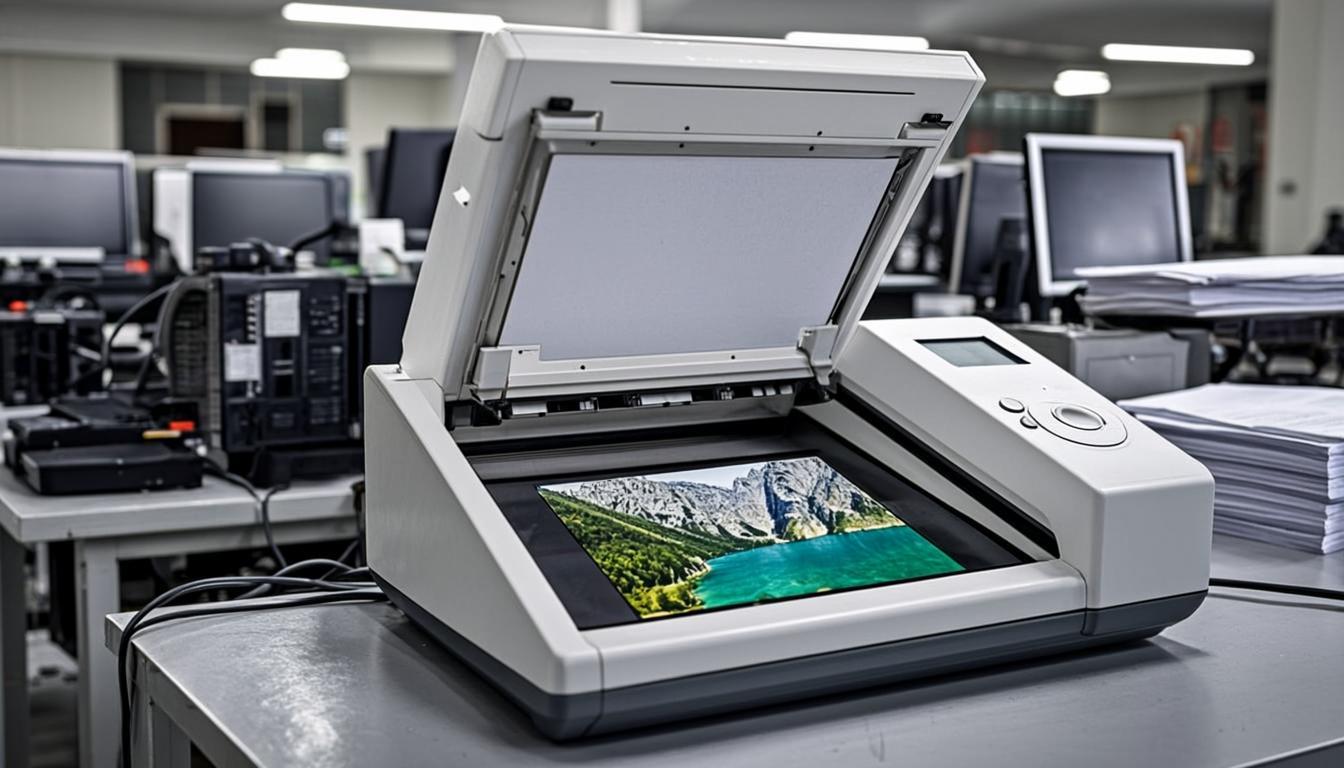
TIFF is the print shop standard — high color depth, no quality loss, native to commercial printing presses and desktop scanners.
✓ Best For
- Commercial print workflows
- Desktop scanner output
- Medical imaging (CT, MRI, ultrasound)
- Archival masters with maximum color fidelity
✗ Not Great For
- Web delivery (files are 50–100 MB)
- Email attachments (too large)
- Sharing with non-printers (use JPG instead)
💻 Works On
Adobe Photoshop, Illustrator, InDesign. Most image editors. Not supported by web browsers natively.
What is TIFF? The Tagged Image File Format Standard
TIFF (Tagged Image File Format) was created by Aldus Corporation in 1986 (later acquired by Adobe) and is now an ISO standard (ISO 12687). TIFF is a flexible container that stores uncompressed or losslessly compressed pixel data at high color depths (8-bit, 16-bit, 32-bit per channel). TIFF is required by commercial print shops, desktop scanners, and medical imaging systems where maximum color fidelity matters more than file size.
Every modern image editor (Photoshop, GIMP, Affinity Photo, Pixelmator) reads and writes TIFF natively. Commercial printing presses, desktop scanners (Epson, Canon, HP), and medical imaging systems (CT, MRI, ultrasound) typically output TIFF as the default format. For these workflows, TIFF is the right choice; for web delivery, convert TIFF to WebP or AVIF after editing.
Lossless Compression & High Color Depth Storage
TIFF supports multiple compression modes: uncompressed (the default), LZW (lossless, 30–60% reduction), Deflate (lossless, similar to LZW), PackBits (RLE for palette images), JPEG (lossy, rarely used in TIFF), and CCITT Group 3/4 (for fax and document scans). The default uncompressed TIFF preserves every pixel exactly — files are large but the pixel data is byte-identical to the original capture.
TIFF color depth options: 1-bit (binary), 8-bit grayscale, 8-bit per channel RGB (24-bit total), 16-bit per channel RGB (48-bit total, common for professional photography), 32-bit float per channel (96-bit total, for HDR work). The 16-bit and 32-bit variants preserve much finer tonal gradations than the 8-bit JPEG alternative — critical for print workflows where every tonal step is visible on the press.
Multi-Page TIFFs & Document Scanning Workflows
TIFF supports multi-page documents in a single file — multiple IFD (Image File Directory) records stack images sequentially. This is the standard format for desktop scanner output: a 50-page document scan becomes a single 50-page TIFF, easy to manage and archive. Most scanning software (Epson Scan, VueScan, SilverFast) defaults to multi-page TIFF output.
The trade-off: multi-page TIFFs are large files (a 50-page A4 scan at 300 DPI can be 100–500 MB). For archival storage, this is acceptable; for sharing or web delivery, convert multi-page TIFF to PDF (universal readability) or extract each page as a separate JPG or WebP for web display. The in-browser converter handles both workflows.
TIFF vs PNG vs JPG: The Print & Web Triangle
For print publishing: TIFF is the right choice — uncompressed, high color depth, native to commercial print software. For web delivery: JPG, WebP, or AVIF — file size matters more than pixel fidelity for online viewing. For UI graphics and logos with transparency: PNG is the right choice — full alpha channel, universal browser support, smaller than TIFF for the same pixel content.
The pragmatic workflow: TIFF as the print-ready master, PNG or WebP as the web delivery format, JPG as a universal fallback. Convert from TIFF to PNG (lossless, smaller file with alpha) for UI work, or from TIFF to JPG (lossy, dramatically smaller) for photographic web delivery. For commercial print, ship the TIFF directly.
TIFF vs PNG vs WebP: Choosing the Right Lossless Format
For lossless image storage, three formats compete: TIFF (high color depth, professional print), PNG (8-bit color, universal web support), WebP lossless (smaller than PNG, modern browser support). The choice depends on color depth and target workflow: 16-bit or 32-bit color depth → TIFF; 8-bit color depth with universal browser support → PNG; 8-bit color depth with modern browser support → WebP lossless.
For most non-print workflows, PNG is the right lossless format — full alpha transparency, universal browser and editor support, reasonable file sizes for UI graphics. TIFF is the right choice when 16-bit or 32-bit color depth is required (professional photography, medical imaging, scientific imaging) or when commercial print shops require TIFF inputs.
TIFF Compression Modes & File-Size Reduction
Uncompressed TIFF files are large — a 3000×3000 pixel 16-bit TIFF is roughly 54 MB. Compression reduces this without any pixel loss: LZW achieves 30–60% reduction on most photographic content, Deflate (zlib) achieves similar compression with better cross-application compatibility, PackBits is a fast RLE that works well for palette images but poorly for photographs.
For TIFF archival, LZW compression is the safe default — universally readable, no generation loss, 30–60% smaller than uncompressed. For TIFF → web delivery, skip TIFF compression and convert to WebP or AVIF instead — these formats achieve 70–90% reduction versus uncompressed TIFF, far more than any TIFF compression mode.
TIFF & Core Web Vitals: Why You Should Never Ship TIFF
TIFF files are too large for web delivery. A 16-bit TIFF for a single photographic image can easily exceed 50 MB; on a 4G connection, downloading that file takes 60+ seconds — completely blowing the Largest Contentful Paint budget. PageSpeed Insights flags any TIFF asset as a critical optimization target.
The fix is simple: convert TIFF sources to WebP or AVIF before web delivery. For 8-bit TIFFs, the conversion preserves the exact pixel data (lossless). For 16-bit or 32-bit TIFFs, the conversion tone-maps down to 8-bit (WebP, AVIF) or preserves 10-bit (AVIF only). The result: a 50 MB TIFF becomes a 200 KB WebP at equivalent visual quality on a normal display — a 250× file-size reduction.
TIFF Conversion Strategies: Color Depth, Multi-Page & Print
When converting TIFF to JPG or WebP, the 16-bit or 32-bit source is tone-mapped to 8-bit sRGB. The result is visually identical on most displays, but very high dynamic range content (extreme HDR photography, scientific imaging) may show mild banding in extreme highlights or shadows. For HDR-preserved output, convert TIFF to AVIF (10-bit) instead of JPG (8-bit only).
For multi-page TIFF conversion, the converter extracts each page as a separate image file (PNG, JPG, or WebP). To preserve the multi-page structure, convert TIFF to PDF — each page becomes one PDF page, with no white border, sized to fit the source image. Use this workflow for scanned documents, archived records, and contact sheets.
TIFF Privacy: Medical & Scientific Imaging Risk
TIFF is the standard format for medical imaging (CT, MRI, ultrasound), scientific imaging (microscopy, astronomy), and industrial inspection workflows. These TIFFs often contain sensitive content: patient scans, proprietary engineering data, scientific research data. Uploading such TIFFs to a cloud conversion service is a serious compliance risk — HIPAA, ITAR, and similar regulations explicitly prohibit sending such content to uncontrolled third parties.
In-browser TIFF conversion eliminates the risk. The bytes never leave the device; the server only delivers the WASM decoder module. For organizations subject to HIPAA, ITAR, GDPR, or similar data-protection rules, in-browser TIFF conversion is the only fully compliant workflow. CloudImageConverter uses this architecture — no upload endpoints exist on the server.
Browser-Based TIFF Conversion: Local WASM Decoding
TIFF decoding requires parsing the IFD (Image File Directory) and applying the correct compression mode (LZW, Deflate, PackBits, or uncompressed). Modern browsers can decode TIFF natively (Chrome 89+, Safari 16+, Firefox 88+); for older browsers, a WASM libtiff module handles the decoding in a worker.
For a 50 MB TIFF, in-browser decoding takes 200–500 ms on modern hardware. Re-encoding as WebP takes another 100–300 ms. Total wall-clock time: under 1 second for a 50 MB source file, with zero network round-trips. For batch conversion of 100+ TIFFs, the worker pool parallelizes across 2–4 cores, finishing the batch in 30–90 seconds.
Related TIFF Conversion Tools
Ready to Work with TIFF?
Jump straight to the tool you need — convert TIFF to another format, compress TIFF files for smaller sizes, or edit TIFF images (resize, crop, watermark, add text).
TIFF Task Guides
Learn how to convert, compress, and edit TIFF files with our dedicated task guides.
TIFF Frequently Asked Questions
Common questions about TIFF format — when to use it, how it works, and how to convert it.
TIFFWhat is TIFF and when should I use it?+
TIFF (Tagged Image File Format) is the standard format for commercial printing, desktop scanners, and medical imaging. TIFF stores high-color-depth pixel data (8-bit, 16-bit, or 32-bit per channel) without the generation loss that JPG introduces on every save. Use TIFF when you need maximum color fidelity for commercial print shops, desktop scanner output, medical imaging (CT, MRI, ultrasound), scientific imaging, or archival masters. TIFF files are large by design (a 3000×3000 pixel 16-bit TIFF can be 50 MB) — useful as archive masters or print-ready sources. For web delivery, convert TIFF to WebP or AVIF after editing to shrink file size by 80–90%.
TIFFWhy is TIFF used in commercial printing?+
TIFF stores uncompressed or losslessly compressed pixel data at high color depth (16-bit or 32-bit per channel) without the generation loss that JPG introduces on every save. Commercial printing presses, desktop scanners (Epson, Canon, HP), and medical imaging systems (CT, MRI, ultrasound) all expect TIFF inputs to preserve exact pixel fidelity through the print or scan pipeline. TIFF also supports CMYK color natively (the right color space for commercial print, versus RGB for screens), ICC color profiles for accurate cross-press color reproduction, and multi-page documents in a single file. For any workflow where pixel-perfect fidelity matters more than file size, TIFF is the right choice.
TIFFCan I compress TIFF files without losing quality?+
Yes. TIFF supports multiple lossless compression modes inside the file container: LZW (Lempel-Ziv-Welch) achieves 30–60% reduction on most photographic content with zero pixel loss; Deflate (the same algorithm used in ZIP and PNG) achieves similar compression with better cross-application compatibility; PackBits (run-length encoding) is a fast lossless mode for palette images. The CloudImageConverter writes uncompressed TIFF by default; if file size is a concern, switch to LZW or Deflate compression in the settings. For web delivery, convert TIFF to WebP lossless or AVIF lossless after editing — both produce 70–90% smaller files than uncompressed TIFF at identical pixel fidelity, with full 8-bit alpha transparency preserved.
TIFFHow do I convert TIFF to JPG?+
Use the CloudImageConverter TIFF to JPG tool — drop your TIFF files, pick JPG as the output, set quality to 85% for the universal sweet spot, and download the converted JPG files. The result is typically 85–95% smaller than the source TIFF. The converter maps CMYK color channels (used in commercial print) to sRGB color space (used on screens) so the JPG output renders accurately on computer monitors and phones. For batch conversion, drop up to 100 TIFF files and download them all as a single ZIP archive of JPG files. The conversion runs in your browser, so your confidential scanned documents never leave your device.
TIFFCan I open TIFF files on Windows or Mac?+
Yes. On macOS, the Preview app opens TIFF files natively, as does Adobe Photoshop, GIMP, Affinity Photo, and most image editors. On Windows, the Photos app can open TIFF files (with HEVC codec installed for some TIFF variants), and Photoshop, GIMP, and Affinity Photo all read TIFF natively. Web browsers (Chrome, Firefox, Safari, Edge) can display TIFF files in <img> tags. For multi-page TIFFs (common from desktop scanners), Preview on macOS and the Photos app on Windows both navigate pages natively. If you need to share TIFF content with someone who doesn't have a TIFF reader, convert to JPG or PNG using CloudImageConverter.
TIFFWhat's the difference between TIFF and PNG?+
Both are lossless formats, but they serve different use cases. TIFF is the print shop standard — supports 16-bit and 32-bit color depth, CMYK color (for commercial print), ICC color profiles, multi-page documents, and is native to commercial printing software. PNG is the web standard — supports 8-bit per channel (24-bit RGB or 32-bit RGBA), sRGB color, full 8-bit alpha transparency, and is native to web browsers. Use TIFF for commercial print workflows and archival masters where maximum color depth and fidelity matter. Use PNG for web delivery and editing workflows where universal browser support and transparency matter. For lossless web delivery, WebP lossless and AVIF lossless produce 30–60% smaller files than either TIFF or PNG.