SVG Format Guide: Scalable Vector Graphics for Web Logos & Icons
A practical reference for SVG: how vector paths scale infinitely, how SVG compares to PNG/WebP/AVIF for web logos, when to use SVG instead of raster, and how to ship SVG without breaking on legacy browsers or exposing security risks.
Quick Answer: SVG in Plain English
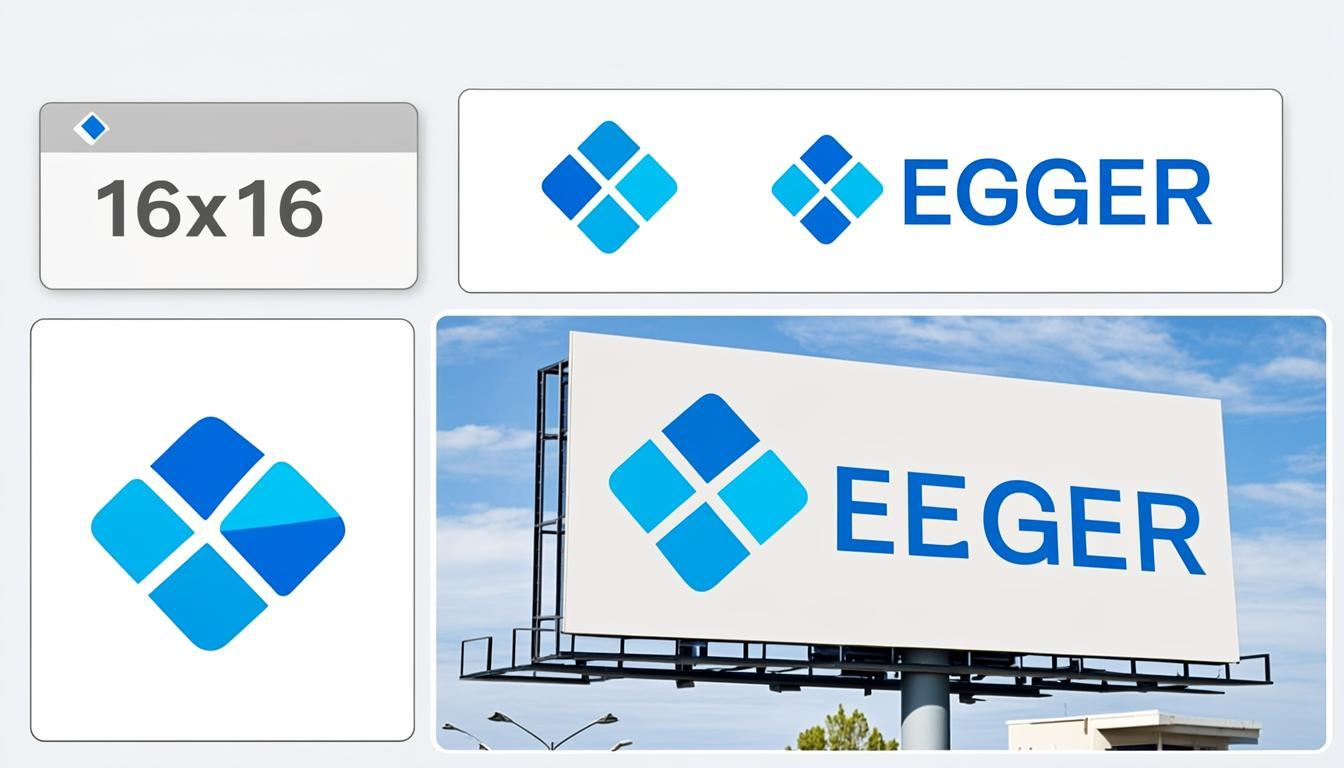
SVG scales to any size without going blurry — a logo looks crisp on a phone screen and a billboard from the same file.
✓ Best For
- Logos and brand marks
- Icons and UI graphics
- Illustrations with clean lines
- Anything that needs to scale across screen sizes
✗ Not Great For
- Photographs (too complex for vector paths)
- Images with millions of colors and smooth gradients
- Email signatures (some email apps don't support it)
💻 Works On
Every modern browser. Can be styled with CSS, animated, and embedded directly in HTML.
What is SVG? Scalable Vector Graphics Standard
SVG (Scalable Vector Graphics) is an XML-based vector image format standardized by the W3C in 2001. SVG stores shapes as path commands (move, line, curve, arc, close) rather than pixel grids — the renderer draws the paths at whatever resolution the display asks for. A 1 KB SVG logo renders pixel-perfect on a 1080p monitor, a 4K Retina screen, and a 300 DPI print, all from the same file.
SVG is the right format for logos, brand marks, UI icons, simple illustrations, and any graphic that needs to scale across multiple display sizes without pixelation. SVG files are typically tiny (often under 10 KB), can be inlined directly in HTML, and can be styled with CSS — color, stroke width, fill patterns can all be controlled from the page's stylesheet.
Vector vs Raster: How SVG Scales Infinitely
Raster formats (PNG, JPEG, WebP, AVIF) store a grid of pixels at a fixed resolution. Double the display size and the image looks blocky; halve the display size and the image loses detail. SVG stores mathematical descriptions of shapes — the renderer computes the pixels at the exact resolution the display needs, every time, with no quality loss.
The trade-off: SVG rendering is slower than raster display (the browser computes paths on every layout), and SVG cannot represent photographic content efficiently. A 4 MB JPEG photo would balloon to 50+ MB as an SVG path-traced approximation. Use SVG for graphics with fewer than a few thousand path segments; use raster for everything else.
SVG Path Data, viewBox & Coordinate Systems
SVG files use a coordinate system defined by the viewBox attribute (e.g. viewBox="0 0 100 100"). The viewBox sets the internal coordinate space; the rendered width and height are independent. A 100×100 viewBox SVG can render at 32×32 pixels or 1000×1000 pixels with the same crispness — the renderer scales the path data to the actual output dimensions.
Path data uses commands like M (move), L (line), C (cubic Bezier), Q (quadratic Bezier), A (arc), Z (close). A simple logo might be 200 bytes of path data; a complex illustration can run 50 KB or more. Most modern SVG editors (Figma, Illustrator, Sketch) optimize path output automatically; running the result through SVGO or SVGOMG drops another 30–50% of dead bytes.
SVG vs GIF vs PNG: Why SVG Replaced Vector GIFs
In the 1990s, web logos and icons were GIF or PNG files at a fixed pixel size — 32×32, 64×64, 128×128. As display resolutions diversified (1×, 1.5×, 2× Retina, 3× mobile), the raster logo workflow became painful: design the logo, export at multiple sizes, ship multiple files, and hope the browser picks the right one. SVG replaced this workflow entirely — one file, every size.
Today, every modern web framework (Next.js, Astro, SvelteKit) ships first-class SVG support. Logos, icons, and brand marks should be SVG by default; raster formats are the fallback for photographic content. The Apple touch icon, the favicon, the OG image, and any image displayed across multiple sizes are all candidates for SVG where the original artwork is vector.
SVG vs PNG vs WebP: Choosing the Right Vector or Raster Format
SVG is for vector graphics — logos, icons, illustrations with clean edges and few colors. PNG is for raster graphics where pixel-perfect fidelity matters more than file size — UI screenshots, flat artwork with transparency. WebP and AVIF are for raster graphics where file size matters — photos, complex gradients, web-bound photographic content.
A common pattern: SVG as the design source, WebP or AVIF as the rasterized web delivery, PNG as the lossless fallback. For logos with simple shapes, ship the SVG directly (no rasterization needed). For complex vector illustrations that don't compress well as SVG (e.g., 1000+ path segments), rasterize to WebP or AVIF for web delivery.
SVG Metadata, Comments & Bloat
SVG files exported from Illustrator, Sketch, or Figma often carry hidden metadata: editor namespaces, layer names, comments, embedded thumbnails, font references. A 5 KB SVG logo can easily balloon to 30 KB with all this editor baggage. Strip it before shipping.
SVGO and SVGOMG are the standard optimizers. They strip editor namespaces (Adobe, Sketch, Inkscape), drop unused defs, simplify path data, round numeric precision to 2–3 decimal places, and remove redundant whitespace. The result is typically 40–60% smaller than the editor export with zero visual quality loss. Run every SVG through SVGO before shipping.
SVG & Google Core Web Vitals: Inline vs External
SVG files are typically tiny (under 10 KB), which means inlining them directly in HTML avoids a separate network request and reduces Largest Contentful Paint. For above-the-fold logos, inline the SVG; for off-screen illustrations, lazy-load the external .svg file. Both approaches are valid; the choice depends on the rendering criticality.
SVG files do not need width and height attributes for CLS prevention — the viewBox sets the aspect ratio, and the CSS controls the rendered size. Set explicit max-width and aspect-ratio in CSS to prevent layout shift during SVG load. For inline SVG, no loading happens at all — the SVG is part of the HTML.
SVG Compression: Gzip, Brotli & Path Optimization
SVG is XML text, which compresses extremely well with gzip (70–80% reduction) and even better with Brotli (75–85% reduction). Every modern web server (Vercel, Netlify, Cloudflare, Nginx with the right modules) ships SVG pre-compressed with Brotli or gzip. The bytes on the wire are typically 1–3 KB even for moderately complex SVGs.
Path optimization (running SVGO) reduces the uncompressed size by 40–60% before gzip. The combined effect — SVGO + Brotli — can shrink a 50 KB SVG export to under 5 KB on the wire. For SVG-heavy sites (icon libraries, brand systems), this compounds across thousands of icons to megabytes of saved bandwidth per page.
SVG Security: XSS Risks & Sanitization
SVG is executable XML — it can contain <script> tags, <foreignObject> with embedded HTML, JavaScript event handlers (onload, onclick), and external references (url, href). If you accept user-uploaded SVGs and serve them inline, you have a cross-site scripting (XSS) vulnerability by default. Sanitize every user SVG before display.
Use DOMPurify or a similar SVG sanitizer to strip <script> tags, event handlers, and external references. For static SVG assets you control (designed in Illustrator or Figma, exported by you), the risk is much lower but still non-zero — running SVGO with the security preset strips most XSS vectors. For inline SVG in HTML, the same content-security-policy that protects your HTML protects the SVG.
Browser-Based SVG Optimization & Rasterization
Modern browsers can render SVG natively, but rasterizing an SVG to PNG or WebP (for OG images, fallback icons, or print output) requires the SVG to be drawn onto a canvas first. The in-browser pipeline: parse the SVG, draw it onto a canvas at the target resolution, then export the canvas as PNG/WebP. All of this runs locally in the browser.
For SVG → PNG rasterization, set the canvas resolution to 2× the displayed size for Retina screens. For SVG → WebP, run the rasterization first, then encode the canvas as WebP. For SVG → AVIF, the same pipeline applies with AVIF encoding at the end. CloudImageConverter ships the full SVG rasterization pipeline in-browser; no upload endpoints exist on the server.
Related SVG Conversion Tools
Ready to Work with SVG?
Jump straight to the tool you need — convert SVG to another format, compress SVG files for smaller sizes, or edit SVG images (resize, crop, watermark, add text).
SVG Task Guides
Learn how to convert, compress, and edit SVG files with our dedicated task guides.
SVG Frequently Asked Questions
Common questions about SVG format — when to use it, how it works, and how to convert it.
SVGWhat is SVG and when should I use it?+
SVG (Scalable Vector Graphics) is a vector image format that stores shapes as mathematical paths instead of pixels. The big advantage: SVG scales to any size without going blurry — a logo looks crisp at 16×16 pixels (browser favicon) and 4000×4000 pixels (billboard) from the same file. Use SVG for logos, brand marks, UI icons, illustrations, and any graphic that needs to scale across different display sizes. SVG files are also tiny (often under 10 KB), can be styled with CSS (color, stroke, fill from your stylesheet), support dark mode via CSS media queries, and can be embedded directly in HTML. For photographs, use JPG, WebP, or AVIF instead — SVG cannot represent photographic content efficiently.
SVGDoes SVG support transparent backgrounds?+
Yes. SVG supports full alpha transparency natively — transparent regions in an SVG render with no background color, so the underlying page color shows through. This makes SVG ideal for logos and UI graphics that need to sit on top of different page colors and UI themes. Unlike PNG (which has a fixed alpha channel per pixel), SVG transparency is defined by which shapes are present — areas with no shapes drawn are transparent. You can also use CSS to control the fill color and opacity of SVG elements, including using rgba() colors with alpha for semi-transparent fills.
SVGHow do I convert a PNG to SVG?+
True raster-to-vector conversion (auto-tracing pixels into editable vector paths) requires a dedicated tracing tool like Adobe Illustrator's Image Trace, Inkscape's Trace Bitmap, or Vector Magic. The CloudImageConverter PNG to SVG tool wraps your PNG pixels in an SVG container that scales cleanly — the output SVG renders the original PNG at any size without pixelation, but the content is still raster pixels inside an SVG wrapper, not editable vector paths. This is useful when you need a scalable delivery format for a logo where you only have a PNG source, but it's not a true vectorization. For true editable vector paths, design the artwork in a vector editor (Illustrator, Figma, Inkscape, Sketch) and export as SVG natively.
SVGCan I edit an SVG file?+
Yes. SVG is XML text, so you can open it in any text editor (VS Code, Sublime Text, even Notepad) and edit the path commands directly. For visual editing, use Adobe Illustrator, Figma, Inkscape (free), Sketch, or Affinity Designer — all of these can open, edit, and re-export SVG files while preserving the vector paths. SVG also supports CSS styling — you can change colors, strokes, fills, and opacity from your page's stylesheet without editing the SVG file itself. This makes SVG ideal for themeable brand assets that need to match different color schemes (light mode, dark mode, brand colors) from a single source file.
SVGIs SVG good for websites?+
Yes — SVG is ideal for website logos, icons, and illustrations. SVG files are tiny (often under 10 KB), load instantly, scale crisply to any display size (no Retina/4K issues), can be styled with CSS, support dark mode via media queries, and can be embedded directly in HTML (no extra HTTP request). For modern web favicons, ship an SVG favicon alongside the ICO and PNG fallbacks — SVG scales perfectly across all browser tab sizes and supports dark mode automatically. For modern web icons (hamburger menus, social icons, UI controls), use SVG icon libraries like Lucide, Heroicons, or Feather Icons instead of icon fonts — SVG icons are sharper, more accessible, and smaller than icon fonts.
SVGWhy use SVG instead of PNG for logos?+
SVG logos scale infinitely — one file works at 16×16 (browser tab), 32×32 (desktop shortcut), 200×200 (header logo), and 4000×4000 (print) with no quality loss. PNG logos are fixed resolution — you need separate files for each size, or you upscale one file and it goes blurry. SVG logos are also typically smaller (under 10 KB) than equivalent PNG logos (20–100 KB), can be styled with CSS (change colors from your stylesheet without editing the file), and can be embedded directly in HTML (no extra HTTP request). For modern web logos, SVG is the right choice. Use PNG only when you need a raster fallback for legacy browsers or when the logo is too complex to vectorize cleanly.