Editing EPS Images
Everything you need to know about editing EPS files — resize, crop, blur sensitive areas, add watermarks, overlay text, and preserve quality through multiple edits — all in your browser.
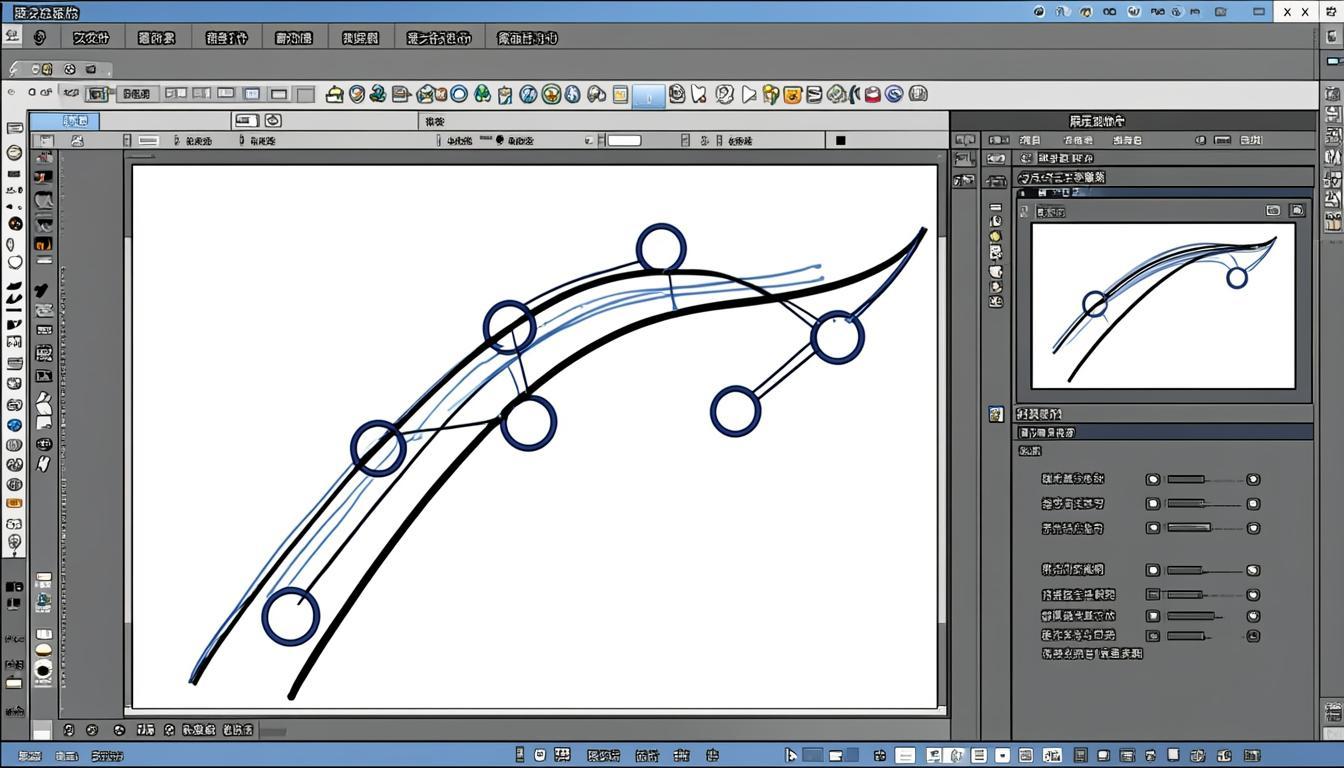
Editing EPS: Resize, Crop, Watermark, and More
Editing EPS — resize, rasterize to PNG or JPG at the right resolution, or open in Illustrator to edit vector paths. EPS is the print shop standard.
Best For
- Resizing EPS images for social media or web
- Cropping EPS photos to specific aspect ratios
- Adding watermarks to EPS files for copyright protection
- Blurring sensitive areas in EPS screenshots
Not Great For
- Editing files that need professional color grading (use desktop software)
- Editing vector paths in raster formats (use a vector editor for SVG/EPS)
- Batch editing 1000+ files (use the Convert tool with presets instead)
Works On
All editing runs in your browser — works on Windows, Mac, iPhone, Android, and Chromebook.
How to Resize EPS Images
Resizing EPS images is the most common editing operation. Open the Edit Image Suite, switch to the Resize tab, and enter the target width or height in pixels. Aspect ratio is locked by default, so changing one dimension updates the other automatically.
For EPS (a lossless format), resizing uses bicubic interpolation. The resized output preserves every pixel exactly — no quality loss from the resize operation itself. For high-DPI screens, multiply the displayed dimensions by 2 (Retina) or 3 (4K) to keep text crisp.
All resizing happens locally in your browser — the EPS source file never leaves your device. For batch resizing, use the Convert tool with the resize option in Advanced Settings.
How to Crop EPS Images
Cropping EPS images lets you remove unwanted edges or change the aspect ratio. Open the Crop tab and pick a preset: 1:1 for Instagram, 16:9 for YouTube, 4:3 for legacy prints, 9:16 for TikTok and Stories, or drag freely for a custom ratio.
The crop preview updates in real time so you can see exactly what the final image will look like before applying. The crop runs entirely in your browser on the source pixel buffer — no quality loss beyond the cropped region, no recompression artifacts, and no upload to any server.
After cropping, click Download to save as PNG, JPG, or WebP. For EPS files with transparency, the cropped output preserves the alpha channel if you pick PNG or WebP as the output format.
How to Blur Areas in EPS Images
Blurring sensitive areas in EPS images is essential for privacy. Open the Blur tab, drag over the region you want to blur, and adjust the blur intensity with the slider.
Use 10-20% blur for soft background distraction, 30-50% for faces in candid photos, 60-80% for license plates or usernames, 90-100% for passwords or financial information. The blur applies only to the selected region — the rest of the image stays sharp.
Everything runs locally on your device — the EPS image never leaves your browser, which is the safest way to redact sensitive information before sharing screenshots in support tickets, bug reports, or public forum posts.
How to Watermark EPS Images
Adding a watermark to EPS images protects your copyright. The Edit Image Suite supports text watermarks (photographer names, brand names, copyright lines, website URLs) and image watermarks (logo PNG with transparency).
For text watermarks: switch to the Add Text tab, click on the image, type your watermark text, and use the font picker (22 fonts), size slider, color picker, and opacity slider (30-50% is standard for visible-but-unobtrusive branding). Drag the corner handles to position.
For image watermarks: switch to the Watermark tab, upload your logo PNG with transparency, position with drag handles, and set opacity (50-70% for visible branding). The watermark applies directly to the pixel buffer and cannot be removed without re-editing.
EPS Editing Best Practices
For EPS (a lossless format), every save preserves every pixel exactly — no generation loss from repeated edits. This makes EPS the ideal format for master files and editing workflows. Export to JPG or WebP only when shipping the final image.
For EPS (a vector format), simple edits (resize, color change) can be done in the Edit Image Suite. For complex vector path editing, use a dedicated vector editor (Illustrator, Figma, Inkscape) and export as EPS natively — the in-browser tool rasterizes the vector for delivery, not for vector path editing.
Privacy When Editing EPS Files
All EPS editing happens 100% locally in your browser. The Edit Image Suite runs on WebAssembly codecs — your EPS files never travel the network, never touch a server log, and never sit in a third-party storage queue.
This is critical for EPS files containing personal content, confidential business assets, healthcare documents, or sensitive image data. For organizations subject to GDPR, CCPA, HIPAA, or similar data-protection rules, in-browser EPS editing is the only fully compliant workflow.
After editing, the output file contains no metadata from the source by default (EXIF is stripped). No camera serial numbers, no GPS coordinates, no software signatures travel with your edited images.
EPS Editing — Frequently Asked Questions
Common questions about editing EPS images.
EPSHow do I resize a EPS image without losing quality?+
Open the EPS image in the Edit Image Suite, switch to the Resize tab, and enter the target width or height in pixels. Aspect ratio is locked by default. The resize uses bicubic interpolation, which produces sharper edges than basic bilinear resize. Since EPS is lossless, the resize preserves every pixel exactly — no quality loss from the resize operation. All processing happens in your browser — the source file never leaves your device.
EPSCan I crop a EPS image to a specific aspect ratio?+
Yes. Open the Crop tab and pick a preset: 1:1 for Instagram, 16:9 for YouTube, 4:3 for legacy prints, 9:16 for TikTok and Stories, or drag freely for a custom ratio. The crop preview updates in real time. The crop runs entirely in your browser on the source pixel buffer — no quality loss, no recompression artifacts, no upload. After cropping, click Download to save as PNG, JPG, or WebP.
EPSHow do I add a watermark to my EPS images?+
The Edit Image Suite supports text and image watermarks for EPS files. For text: switch to Add Text, click on the image, type your watermark, and use the font picker, size slider, color picker, and opacity slider (30-50% is standard). For image: switch to Watermark, upload your logo PNG with transparency, position with drag handles, and set opacity (50-70%). The watermark applies directly to the pixel buffer and cannot be removed without re-editing.
EPSCan I blur sensitive information in a EPS image?+
Yes. Open the EPS image in the Edit Image Suite, switch to the Blur tab, and drag over the region you want to blur. Use 10-20% for soft background, 30-50% for faces, 60-80% for license plates, 90-100% for passwords or financial info. The blur applies only to the selected region. Everything runs locally — the image never leaves your browser, which is the safest way to redact sensitive information before sharing.
EPSDoes editing EPS files reduce quality?+
For EPS (a lossless format), editing does not reduce quality — every pixel is preserved through unlimited edits. Saving EPS 1000 times produces byte-identical output. This makes EPS the ideal format for master files and editing workflows. If you convert to a lossy format after editing, quality loss depends on the output quality setting.
EPSIs EPS editing free and private?+
Yes — fully free, no account, no watermark added by us, no daily limit. All EPS editing happens 100% locally in your browser using WebAssembly codecs. The bytes never travel the network, never touch a server log, and never sit in a third-party storage queue. For organizations subject to GDPR, CCPA, HIPAA, or similar data-protection rules, in-browser EPS editing is the only fully compliant workflow.
Ready to Edit EPS?
Jump straight to the tool and start editing your EPS files now.